Chapter 4 — ATTNs
4.1 Module Overview
The ATTNs module stores individual contact persons linked to Partners and Shippers / Consignees. Each record represents a specific person — their name, title, and contact details — and can be associated with one or more companies within the system.
ATTNs serve as the bridge between companies and people: when a Partner or Shipper / Consignee record needs a point of contact, it links to an ATTN record.
4.2 Viewing the ATTN List
Click ATTNs in the sidebar to open the list view.
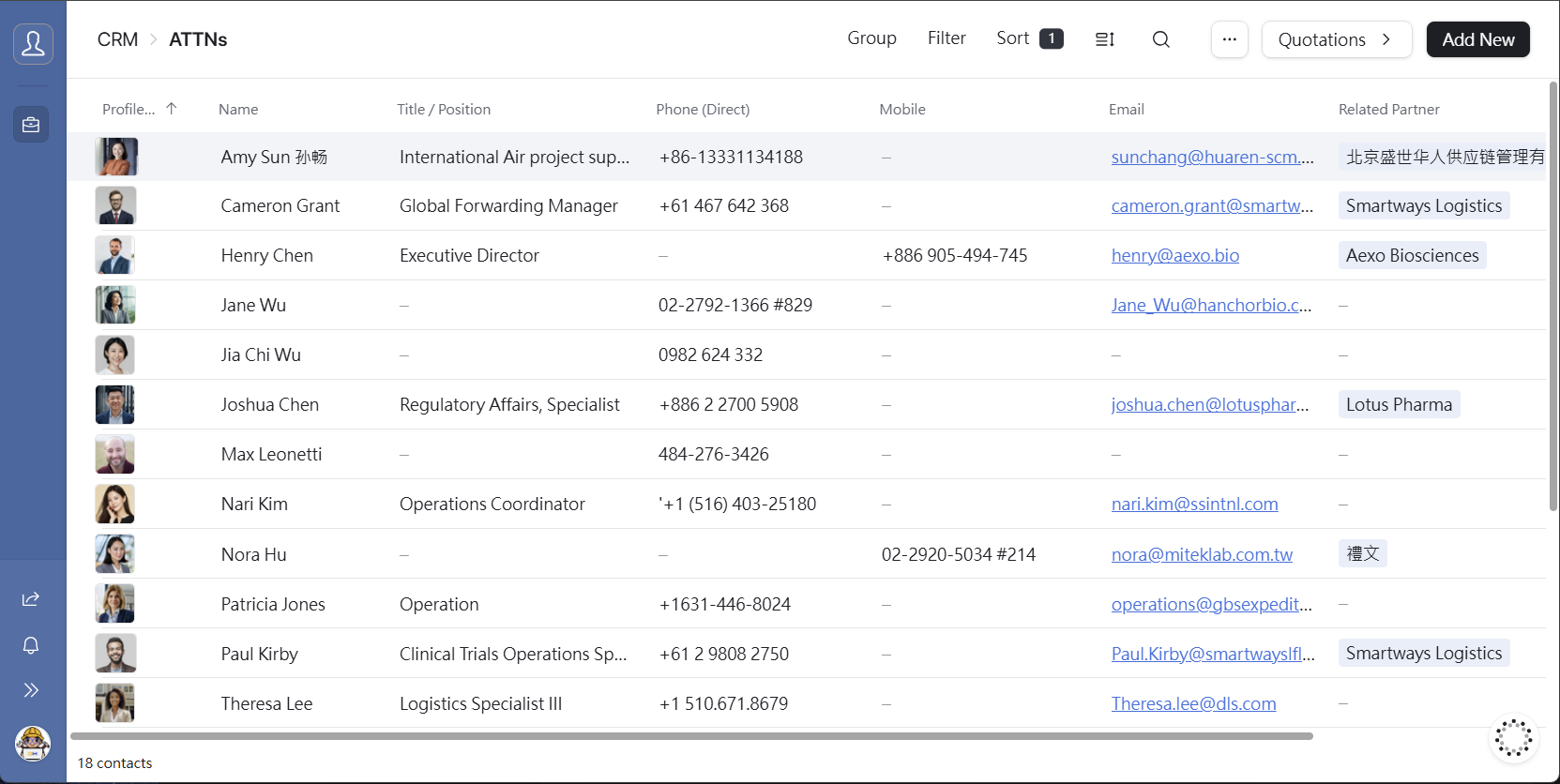
The list displays the following columns:
| Column | Description |
|---|---|
| Name | Contact person's full name (with photo) |
| Title / Position | Job title or role of the contact person |
| Phone (Direct) | Direct phone number |
| Mobile | Mobile phone number |
| Email address | |
| Related Partner | The partner company this contact belongs to |
4.3 Adding a New ATTN
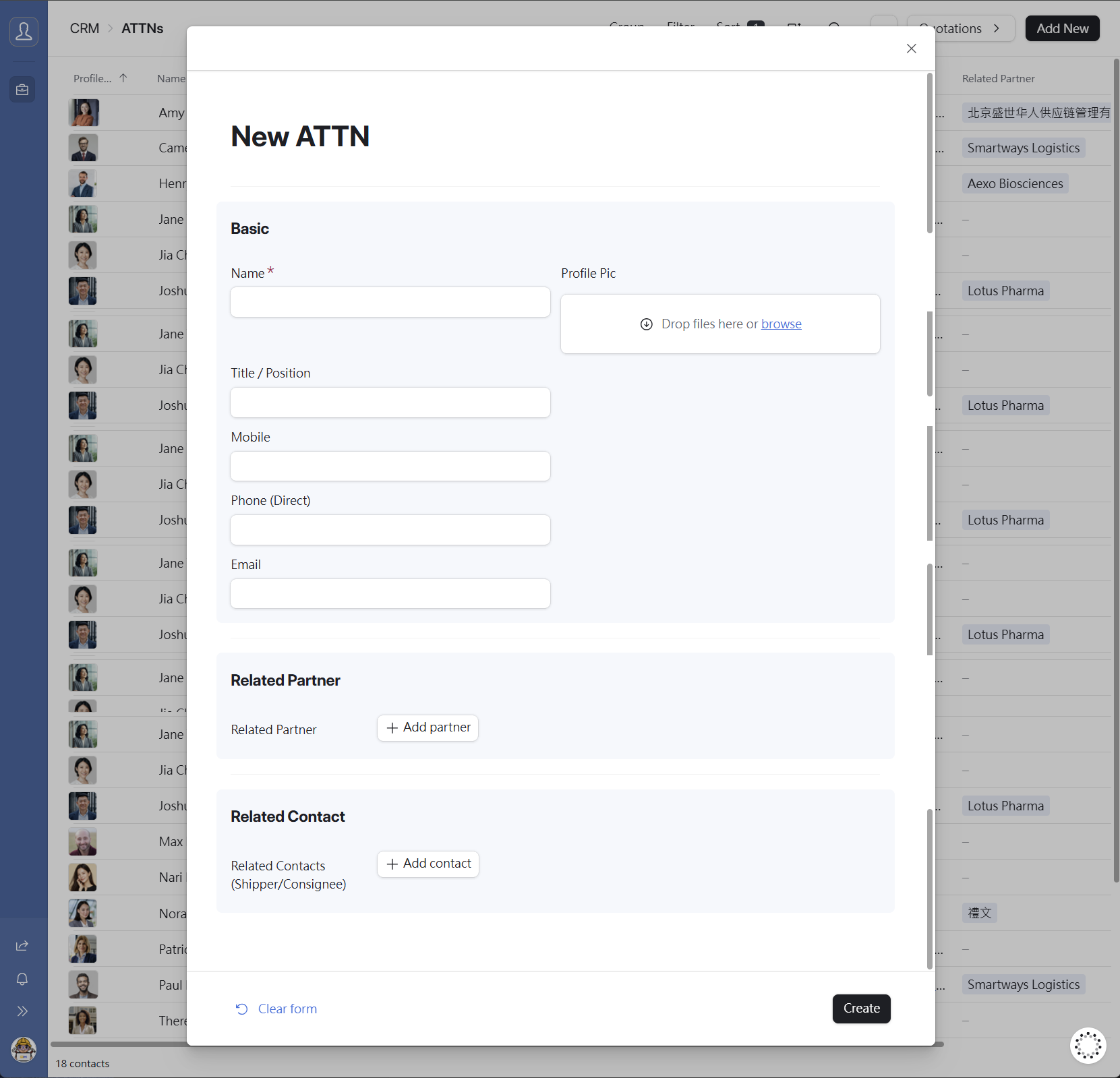
- Click the [Add New] button in the top-right corner of the list page.
- The New ATTN form will appear on the right side of the screen.
- Fill in the required fields (marked with a red *).
- Click [Create] at the bottom-right to save the record.
Form Field Reference
Basic Information
| Field | Required | Notes |
|---|---|---|
| Name | ✅ Required | Contact person's full name |
| Profile Pic | Optional | Photo — drag and drop or click Browse to upload |
| Title / Position | Optional | Job title or role description |
| Mobile | Optional | Mobile phone number |
| Phone (Direct) | Optional | Direct line phone number |
| Optional | Contact email address |
Related Partner
| Field | Required | Notes |
|---|---|---|
| Related Partner | Optional | Click [+ Add partner] to link to an existing Partner record |
Related Contact
| Field | Required | Notes |
|---|---|---|
| Related Contacts (Shippers/Consignee) | Optional | Click [+ Add contact] to link to an existing Shipper / Consignee record |
Form Auto-Save Behaviour
⚠️ Note If you navigate away mid-form (e.g. to check the list), your draft is preserved — clicking [Add New] again will restore your unsaved entries. However, refreshing the page or closing the browser tab will permanently discard all unsaved input.
4.4 Viewing & Editing an ATTN Record
Click any row in the list to open the Detail view. All fields can be edited directly — changes are saved automatically in real time.
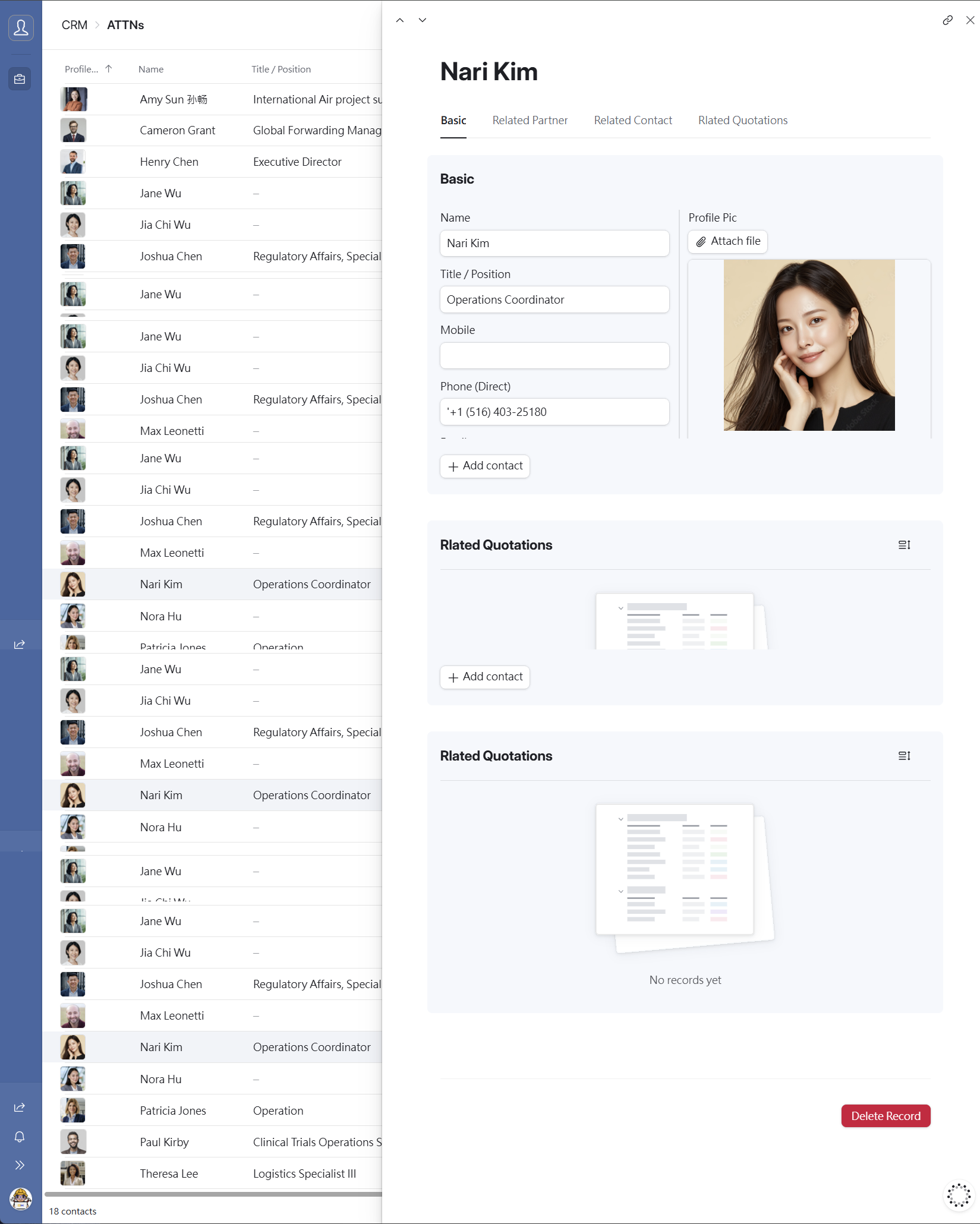
The Detail page has four tabs for quick navigation:
| Tab | Description |
|---|---|
| Basic | Core personal and contact information |
| Related Partner | Linked partner companies — shows associated Partner records |
| Related Contact | Linked Shippers / Consignees — shows associated logistics contact records |
| Related Quotations | All quotations associated with this contact person |
Data Levels
The Detail page has two levels of content:
- Level 1 — The ATTN record itself. All fields (name, title, phone, email, photo) are directly editable.
- Level 2 — Linked records (e.g. Related Partner, Related Contact). These are read-only in this view. To edit them, navigate to the corresponding module directly.
4.5 Deleting a Record
A red [Delete Record] button appears at the bottom of every Detail page.

⚠️ Warning — Irreversible Action Deleted records cannot be recovered. Always verify you have selected the correct record before clicking Delete.
4.6 ATTNs Workflow
Document version: v1.0 | System: TailorMed [CRM] Interface