Chapter 2 — Partners
2.1 Module Overview
The Partners module stores records for all client companies and agents. Each record holds basic company information, financial details, linked contacts (ATTNs), and related quotations.
2.2 Viewing the Partner List
Click Partners in the sidebar to open the list view. Records are grouped by Role — currently Client and Agent.
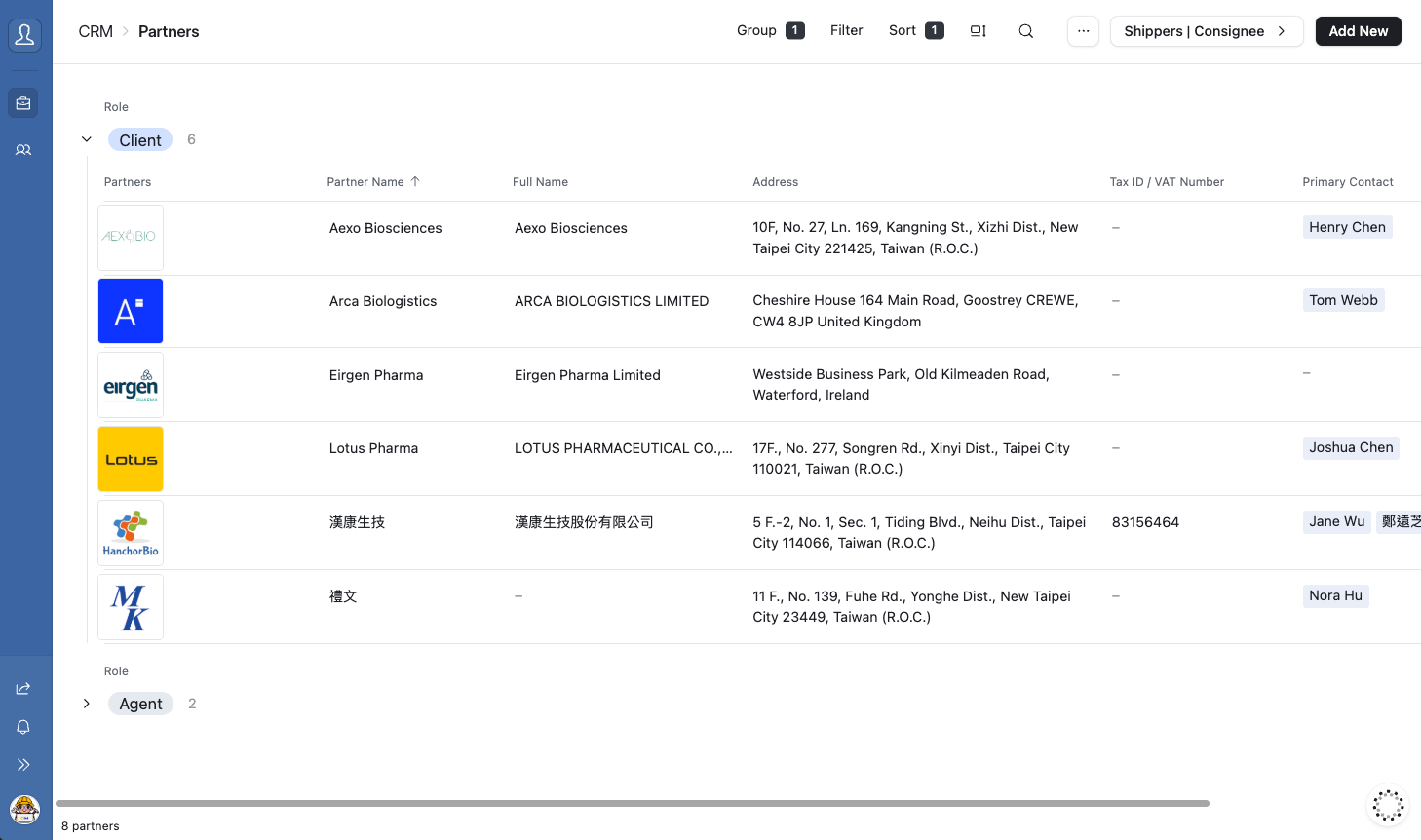
The list displays the following columns:
| Column | Description |
|---|---|
| Partners (Logo) | Company profile image |
| Partner Name | Short name used for system identification |
| Full Name | Official registered company name |
| Address | Company address |
| Tax ID / VAT Number | Tax registration number |
| Primary Contact | Linked primary contact person |
2.3 Adding a New Partner
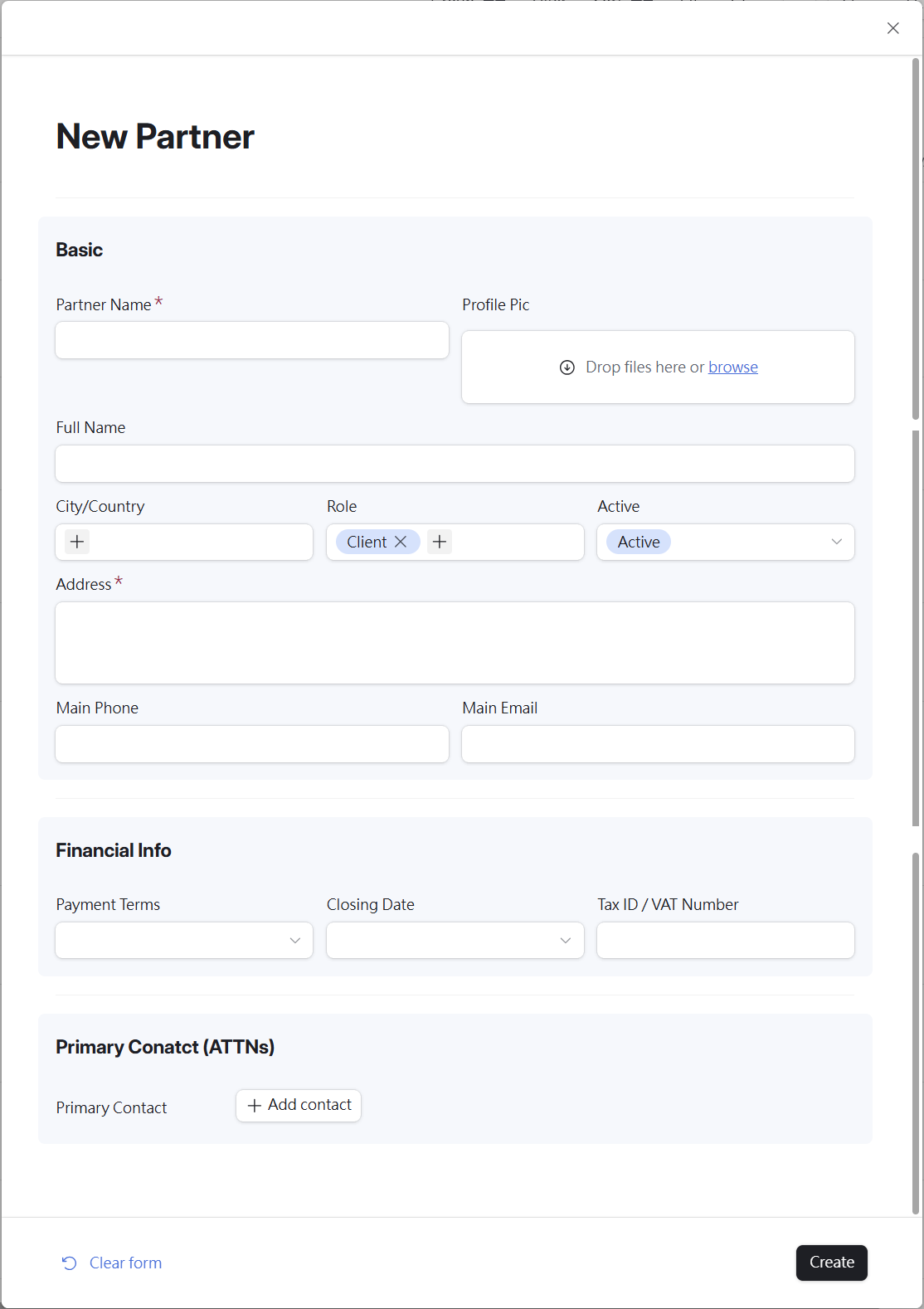
- Click the [Add New] button in the top-right corner of the list page.
- The New Partner form will appear on the right side of the screen.
- Fill in the required fields (marked with a red *).
- Click [Create] at the bottom-right to save the record.
Form Field Reference
Basic Information
| Field | Required | Notes |
|---|---|---|
| Partner Name | ✅ Required | Short name used for system identification |
| Full Name | Optional | Official registered company name |
| Profile Pic | Optional | Company logo — drag and drop or click Browse to upload |
| City / Country | Optional | Location of the company |
| Role | Optional | Defaults to Client — change to Agent if applicable |
| Active | Optional | Defaults to Active |
| Address | ✅ Required | Full company address |
| Main Phone | Optional | Primary company phone number |
| Main Email | Optional | Primary company email address |
Financial Information
| Field | Notes |
|---|---|
| Payment Terms | Select from dropdown |
| Closing Date | Select from dropdown |
| Tax ID / VAT Number | Company tax registration number |
Primary Contact (ATTNs)
| Field | Notes |
|---|---|
| Primary Contact | Click [+ Add contact] to link an existing ATTN record |
Form Auto-Save Behaviour
⚠️ Note If you navigate away mid-form (e.g. to check the list), your draft is preserved — clicking [Add New] again will restore your unsaved entries. However, refreshing the page or closing the browser tab will permanently discard all unsaved input.
2.4 Viewing & Editing a Partner Record
Click any row in the list to open the Detail view. All fields can be edited directly — changes are saved automatically in real time.
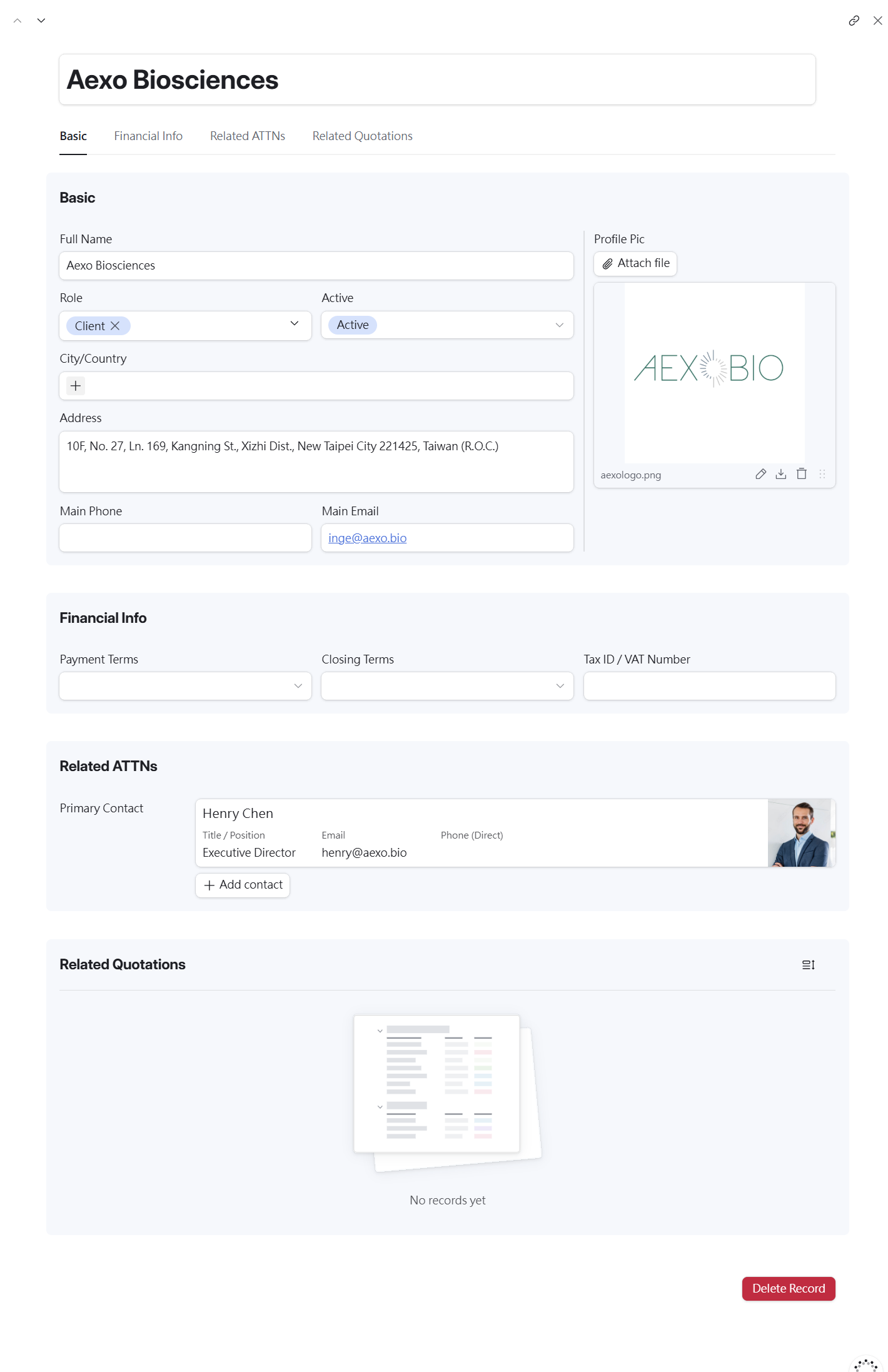 The Detail page has four tabs for quick navigation:
| Tab | Description |
|---|---|
| Basic | Core company and contact information |
| Financial Info | Payment terms and tax details |
| Related ATTNs | Linked contact persons — read-only here; edit in the ATTNs module |
| Related Quotations | All quotations associated with this partner |
Data Levels
The Detail page has two levels of content:
- Level 1 — The Partner record itself. All fields are directly editable.
- Level 2 — Linked records (e.g. Related ATTNs). These are read-only in this view. To edit them, navigate to the corresponding module (e.g. ATTNs) directly.
2.5 Deleting a Record
A red [Delete Record] button appears at the bottom of every Detail page.

⚠️ Warning — Irreversible Action Deleted records cannot be recovered. Always verify you have selected the correct record before clicking Delete.
2.6 Partners Workflow
Document version: v1.0 | System: TailorMed [CRM] Interface