Chapter 3 — Shippers / Consignee
Module: Shippers / Consignee System: TailorMed CRM (Airtable Interface)
3.1 Module Overview
The Shippers / Consignee module stores the basic logistics information for pickup locations (Shippers) and delivery destinations (Consignees).
Each record must be assigned a Role — either Shipper or Consignee — to indicate how that party is involved in a shipment. Note that the same company can appear as both a Shipper and a Consignee depending on the shipment context.
3.2 Viewing the Shippers / Consignee List
Click Shippers / Consignee in the sidebar to open the list view. Records are grouped by Role:
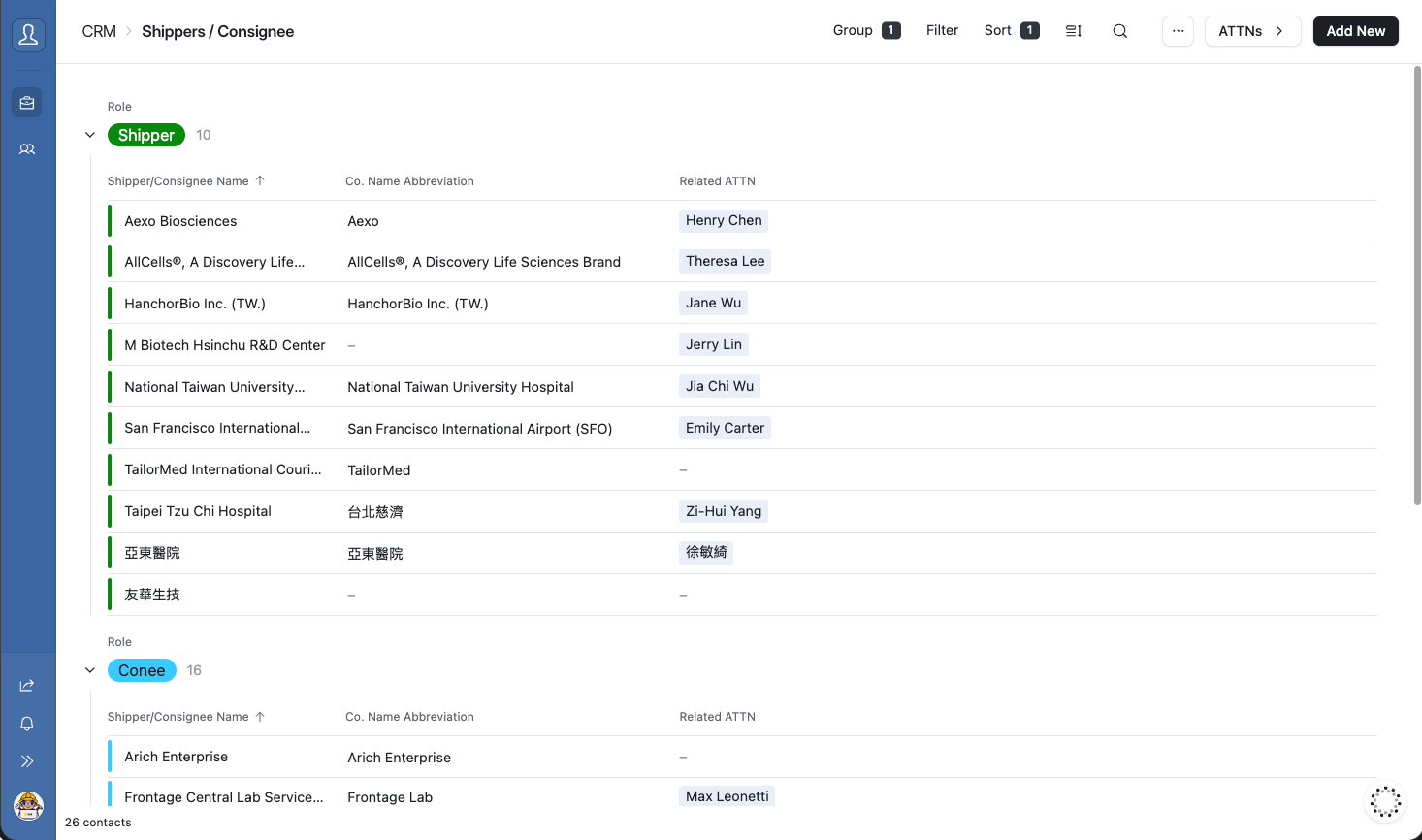
- Shipper — pickup locations
- Consignee — delivery destinations
The list displays the following columns:
| Column | Description |
|---|---|
| Shipper / Consignee Name | Full company name |
| Co. Name Abbreviation | Short name for quick reference |
| Related ATTN | Linked contact person |
3.3 Adding a New Shipper / Consignee
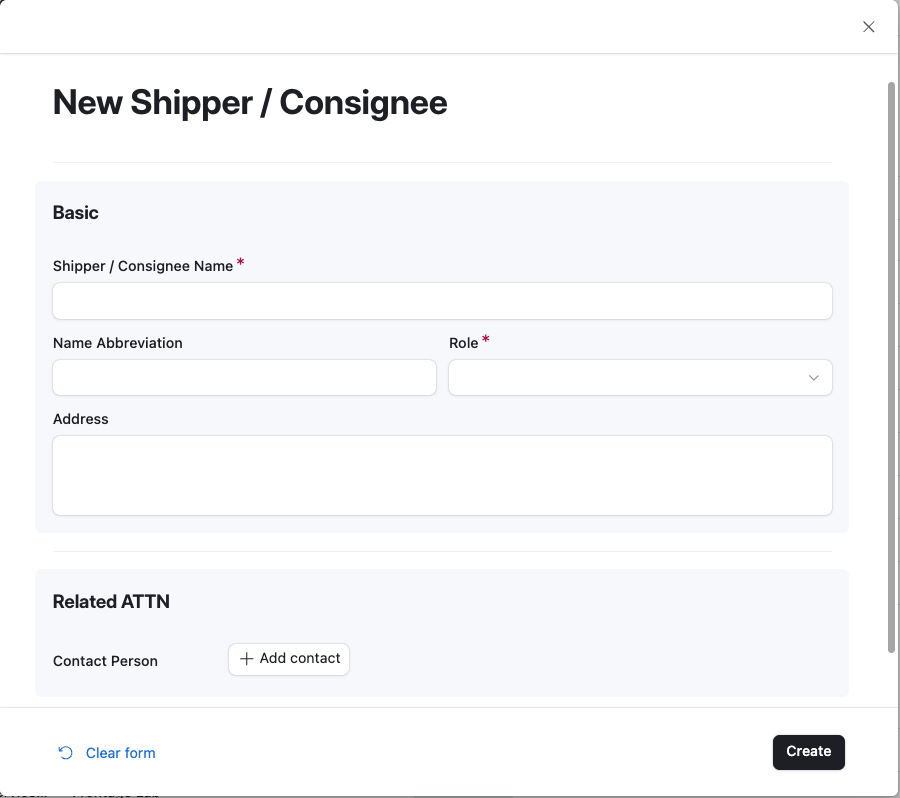
- Click the [Add New] button in the top-right corner of the list page.
- The New Shipper / Consignee form will appear.
- Fill in the required fields (marked with a red *).
- Click [Create] at the bottom-right to save the record.
Form Field Reference
Basic Information
| Field | Required | Notes |
|---|---|---|
| Shipper / Consignee Name | ✅ Required | Full company name |
| Name Abbreviation | Optional | Short name for quick reference |
| Role | ✅ Required | Select Shipper or Consignee |
| Address | Optional | Full address of the pickup or delivery location. Recommended to fill in for accuracy. |
Related ATTN
| Field | Required | Notes |
|---|---|---|
| Contact Person | Optional | Click [+ Add contact] to link an existing ATTN record |
💡 Note — The same company can act as both a Shipper and a Consignee depending on the shipment. If this applies, create a separate record for each role so that quotation links remain accurate and easy to trace.
3.4 Viewing & Editing a Record
Click any row in the list to open the Detail view. All fields can be edited directly — changes are saved automatically in real time.
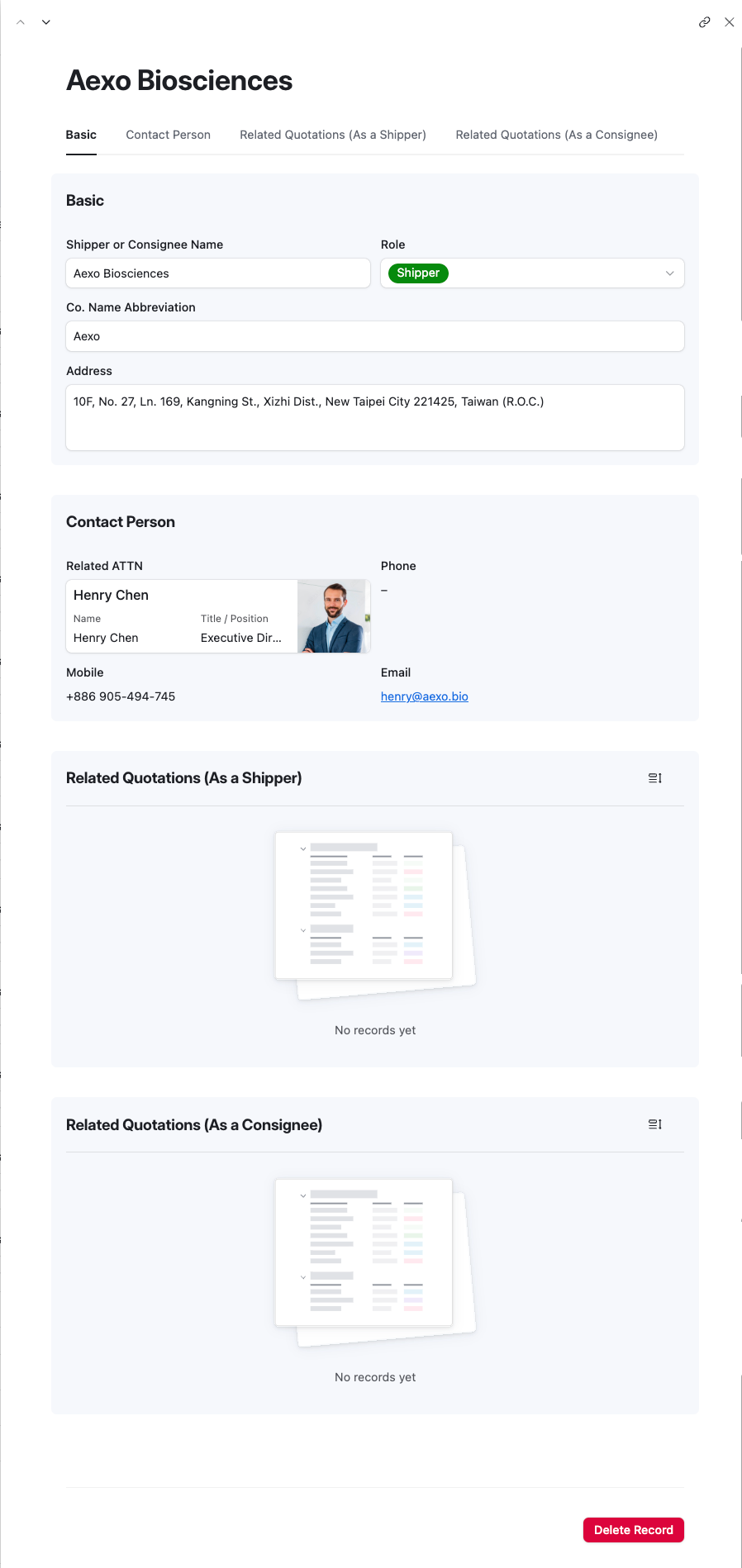 The Detail page has four tabs:
| Tab | Description |
|---|---|
| Basic | Core logistics information — name, role, address |
| Contact Person | Linked ATTN contact — read-only here; edit in the ATTNs module |
| Related Quotations (As a Shipper) | All quotations where this record is the pickup party |
| Related Quotations (As a Consignee) | All quotations where this record is the delivery party |
💡 Tip — The Related Quotations tabs are automatically populated by Airtable. They allow you to quickly see all shipments associated with this location, whether as a pickup or delivery party.
3.5 Deleting a Record
A red [Delete Record] button appears at the bottom of every Detail page.

⚠️ Warning — Irreversible Action Deleted records cannot be recovered. Always verify you have selected the correct record before clicking Delete.